Changelog

Follow new updates and improvements to BookedSolid.

February 5th, 2026

New

Appointment Confirmations (not to be confused with Appointment Reminders) have been added as a new feature to the outbound module!

Appointment Confirmations can be sent to patients when they book an appointment into your PMS calendar. These confirmations can be scheduled to run via calls or SMS and are not exclusive to appointments booked via the AI.

If youโ€™re running them via SMS, you can even add a link to any patient forms you require for new patients.

February 4th, 2026

New

Improved

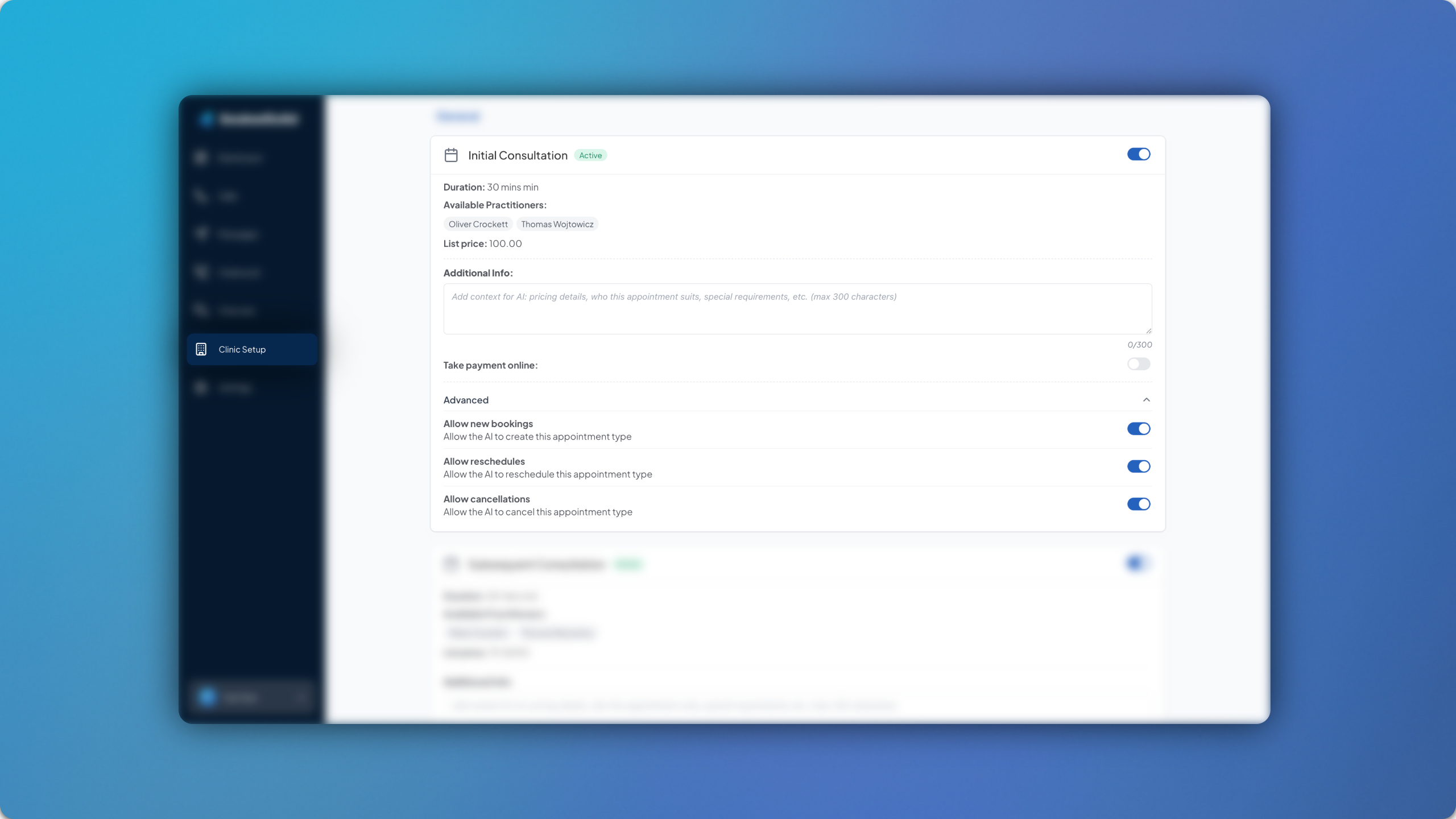
You can now add additional practitioner information to each of your practitioners in Clinic Setup.

The following fields can be added to each practitioner:

  • Nickname / Alternative Name: Add a nickname or preferred name for each of your practitioners, ensuring that the AI refers to them as they are known in the clinic and by patients.

  • Info / Specialities: Add information or specialities to each practitioner, such as what treatment types they specialise in, or any experience or qualifications they may have.

  • Assign Email: Assign a notification email address for each practitioner, ensuring that any specific patient requests for that practitioner are forwarded to their email address as well as the main notification email address.

January 26th, 2026

Fixed

A platform-wide upgrade has been made to the intro message.

After lots of testing, weโ€™ve found the most effective intro message formula for increasing patient engagement with the AI, as well as reducing call drop-offs and unnecessary human support requests.

This standardised intro message will be applied to your account for the above reasons, however, if you still wish to return to your previous intro message then you can do so at the bottom by clicking Switch back to old-style intro messages. It is likely to be less effective.

January 23rd, 2026

New

Improved

The settings page has been updated and refactored into a more simple format, with different settings available in different drop-downs.

More complex settings such as scripting, custom instructions and compliance information have been added to the new โ€˜Advancedโ€™ drop-down.

More additions and upgrades are planned for the settings page throughout the following months!

January 21st, 2026

New

Improved

You can now send multiple communication runs for each outbound instance.

How it Works

Up to three communication runs can be set for each outbound instance, with varying details.

You can change both the channel (calls/SMS) and the actual message that is sent for each communication run. Each additional run is sent exclusively to patients who fail to engage with the previous run. You can also choose how much time to set between each run.

January 5th, 2026

New

Improved

Waiting Lists have been given an upgrade, allowing you to manage them more closely by adding patients manually.

How it Works

Previously, the patient would have to contact the clinic and request an unavailable appointment time in order to be added to the waitlist. Whilst this is still the primary function, you can also enter patient details manually as well.

Simply head to Outbound and ensure that your waiting list instance is enabled. Once itโ€™s enabled, the Manual Waitlist Management tab will appear at the top of the page. Click Add to Waitlist and enter the following details for the respective patient you wish to add:

  • Patient Phone Number

  • Location (if applicable)

  • Service/Appointment type

  • Practitioner

  • Preferred Time Window

You can then click Add to Waitlist and youโ€™ll be able to see all the current patient entries.

January 5th, 2026

New

Improved

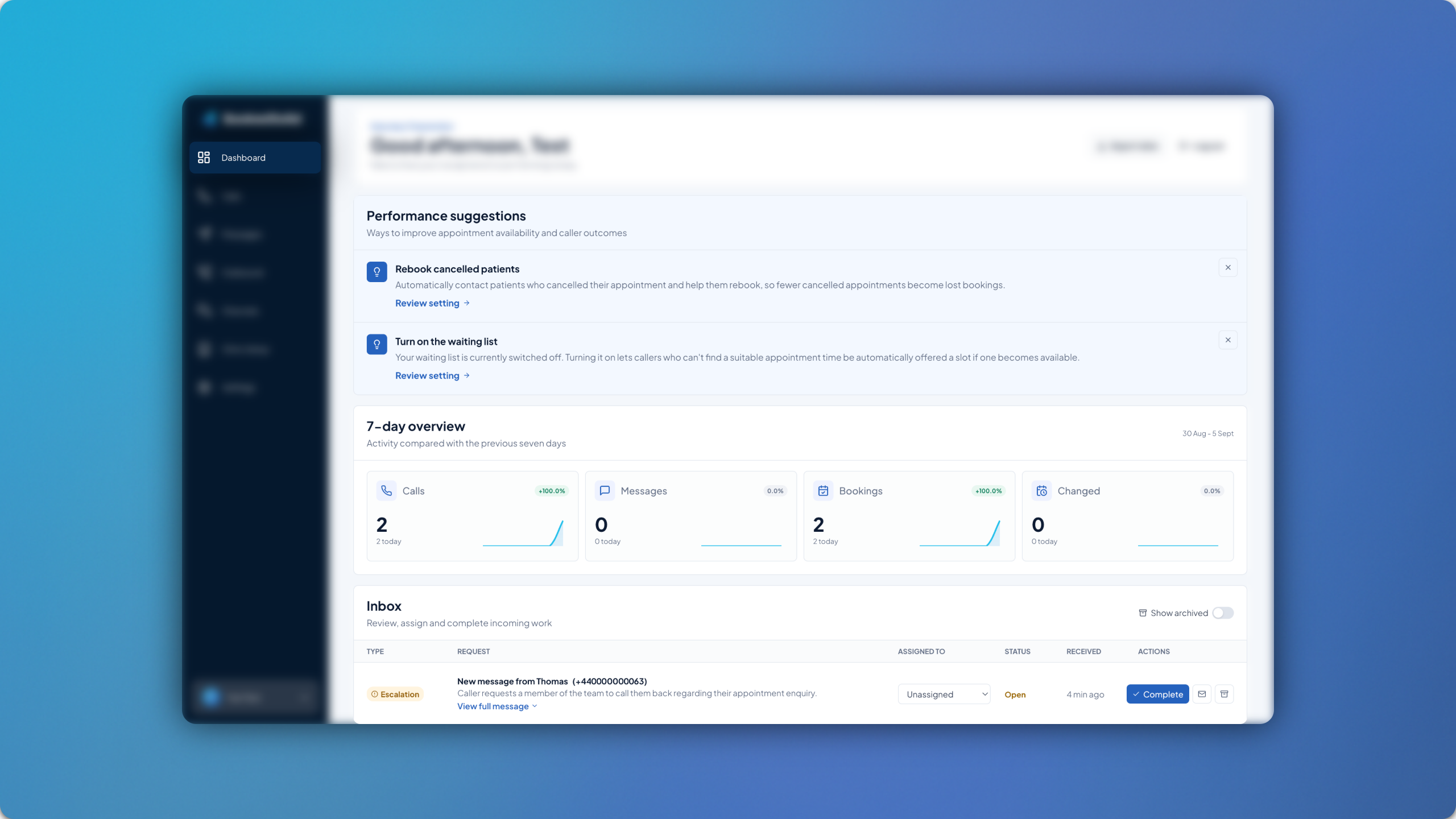
New and improved performance statistics are now available on the dashboard!

Simply head to Dashboard > Performance Statistics where you will find detailed insights into the performance of your AI receptionist:

  • Bookings

  • Reschedules

  • Cancellations

  • Escalations

  • Messages Received

  • Message Conversations

  • Calls Out Of Hours

  • Follow-ups Sent

  • Follow-ups Replied

In the top right you will see two drop downs. The first drop down allows you to change the timeframe for the displayed performance statistics, for 7, 30 or 90 days, as well as between any specific dates. The second drop down acts as a filter for the different channels.

January 5th, 2026

New

You can now edit the compliance/regulatory information related to your specific profession.

When creating an account, you will be asked to specify what type of clinic you are (physiotherapy, podiatry, etc). Each of the professions comes with standard compliance information applicable to the profession.

In order to edit this, head to Settings > Compliance > Edit Compliance Info. You can reset the compliance info to default at any time.

November 14th, 2025

New

Improved

Location assigned phone numbers have been introduced to the platform, allowing you to add additional AI phone numbers to your account and assign them each a location.

How it Works

The first step is to provision a new number in Channels > Phone Numbers. Once this is ready you can then click Edit and assign a location to each of your numbers. Remember to click Save.

This sets a default location for the phone number, meaning if a patient calls, it will be assumed that they are looking for an appointment at that location, unless otherwise stated. If the patient asks for availability at a different location, they can still proceed to book an appointment.

Admin Setup

Once youโ€™ve assigned a location to each phone number, you can then assign a notification email address as well as a call transfer number for each location. This can be done in Clinic Setup > Locations.

November 5th, 2025

New

Improved

The script editing feature has been given a UI/UX revamp, with the introduction of the new AI Script Assistant for an easier way to change scripts.

How it Works

In order to edit a script, simply ask the AI Script Assistant at the bottom what youโ€™d like to change. The assistant will then update the relevant script and give you a preview of the changes. You will then be able to either save these changes or discard them.

For any requests which canโ€™t be handled directly by the assistant, the assistant will contact a member of the team.