Manual Waitlist Management
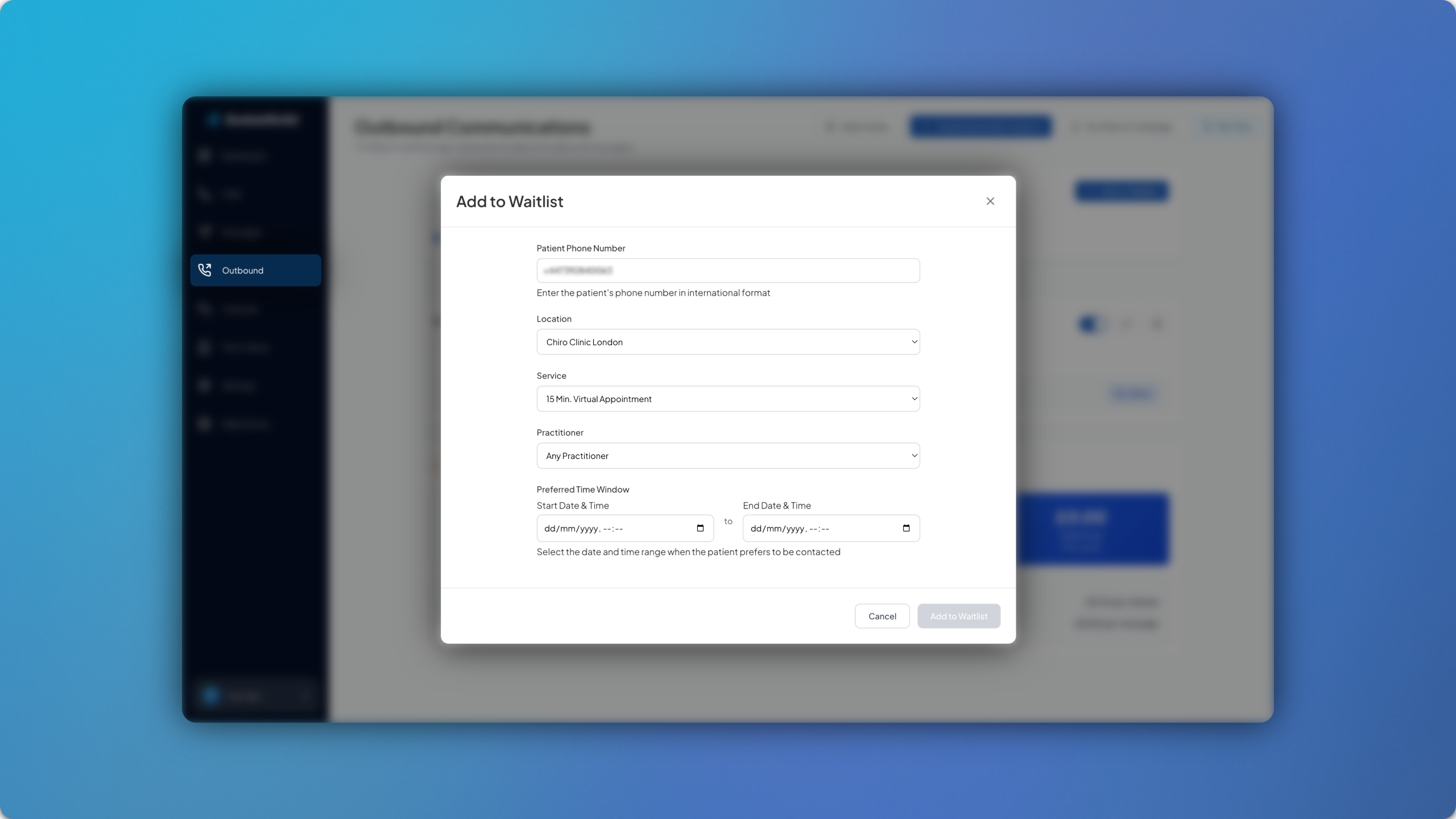
Waiting Lists have been given an upgrade, allowing you to manage them more closely by adding patients manually.
How it Works
Previously, the patient would have to contact the clinic and request an unavailable appointment time in order to be added to the waitlist. Whilst this is still the primary function, you can also enter patient details manually as well.
Simply head to Outbound and ensure that your waiting list instance is enabled. Once it’s enabled, the Manual Waitlist Management tab will appear at the top of the page. Click Add to Waitlist and enter the following details for the respective patient you wish to add:
Patient Phone Number
Location (if applicable)
Service/Appointment type
Practitioner
Preferred Time Window
You can then click Add to Waitlist and you’ll be able to see all the current patient entries.